How to Create a Optical Invoice in Metro Accounting System?
To create an optical invoice in Metro Accounting System, follow these steps:
1) Once logged in, navigate to the "Accounting" module by clicking on its icon in the main dashboard or by using the application menu.

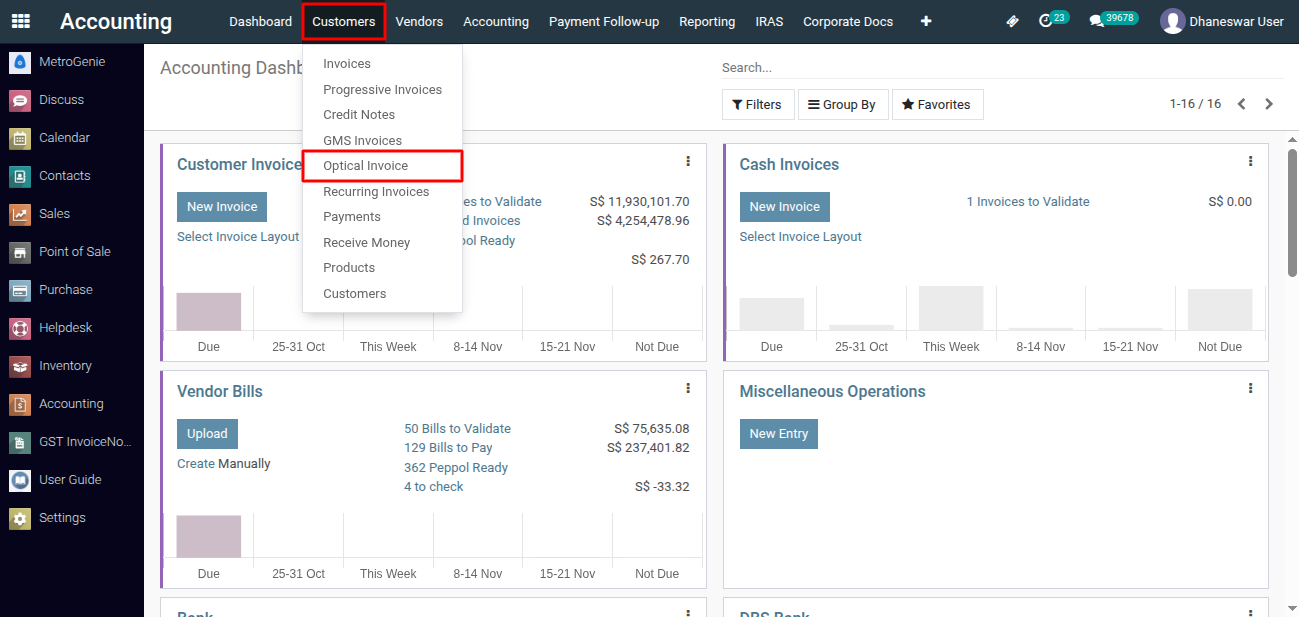
2) Click on 'Customers' > 'Optical Invoice' menu.
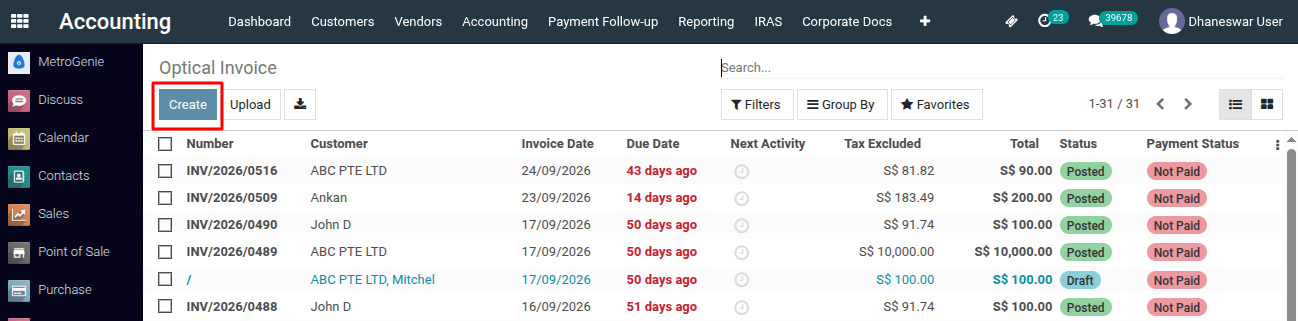
3) Click on ‘Create’ button to start creating a new invoice.
4) Select the customer, add products or services, specify quantities and set other relevant details.

5) Next Click on "Save" button, then click on the "Confirm" button.
6) Once your invoice is in the posted/confirmed stage, you can register the payment. To do this, click on the 'Register Payment' button."
7) This action will open a new window with details of the journal, amount, payment date, and memo.
8) Click on "Create Payment" button to register the payment.
To get more details to create a optical invoice in Metro Accounting System, please do contact us at support@metrogroup.solutions